
Introduction
FaceTime is a fundamental app for iPhone users, offering an easy and efficient way to connect through video calls. Despite its user-friendliness, many users find themselves searching for ways to pause a FaceTime call, a feature that Apple has not officially integrated into the app. This comprehensive guide explores various methods to help you manage FaceTime calls effectively, ensuring your privacy and ability to multitask remain intact. Knowing how to navigate these can significantly enhance your FaceTime experience.

Understanding the FaceTime Interface on iPhone
FaceTime’s interface is streamlined for ease of use, yet understanding its features can help you maximize its utility. The app’s primary functionalities include starting video or audio calls, switching between the front and rear cameras, and managing audio settings to ensure the best call quality.
- Basics of FaceTime Functionality: FaceTime’s straightforward design helps users to initiate and receive calls seamlessly. The main interface comprises a call button, contacts list, and video switch options, facilitating intuitive navigation.
- Key Features of the FaceTime App: Features such as Picture-in-Picture allow users to continue seeing the call while accessing other apps, although an official ‘pause’ option is notably missing.
- Navigating FaceTime on Different iPhone Models: While core features are consistent, newer iPhone models offer enhancements that improve video quality and call stability.
Recognizing these facets is vital as you explore alternatives to pausing FaceTime.
Why Pausing FaceTime Calls Matters
The ability to pause a FaceTime call is crucial in many real-world scenarios, primarily to maintain privacy and improve multitasking abilities.
-
Privacy Concerns: During video calls, there may be situations where sharing your environment isn’t ideal. Pausing provides a momentary retreat from the camera, protecting private conversations or activities from being inadvertently broadcasted.
-
Multitasking during a Call: Today’s fast-paced world often requires multitasking. Whether you need to reply to messages or schedule an appointment, a pause feature would facilitate seamless task transitions.
Maintaining such balance during real-time communication necessitates practical solutions for managing FaceTime usage effectively.
Exploring Workarounds to Pause FaceTime
Even without a direct pause feature, several workarounds can imitate that functionality, granting you more control over your calls.
- Using the Mute Button as an Alternative:
- Tap the screen during a call to reveal options.
-
Select the mute button to silence your microphone. While this does not pause the video, it prevents audio from being shared.
-
Minimizing Video for a Pause Effect:
-
Use Picture-in-Picture or return to the Home Screen to minimize the video. This temporarily hides your camera feed from view.
-
Leveraging Screen Time and Do Not Disturb:
- Activate ‘Do Not Disturb’ to reduce interruptions, effectively pausing notifications.
- Use ‘Screen Time’ settings to limit the app’s functionality during specific periods, creating a pause-like effect.
These strategies let you manage your calls smoothly without needing to disconnect completely.
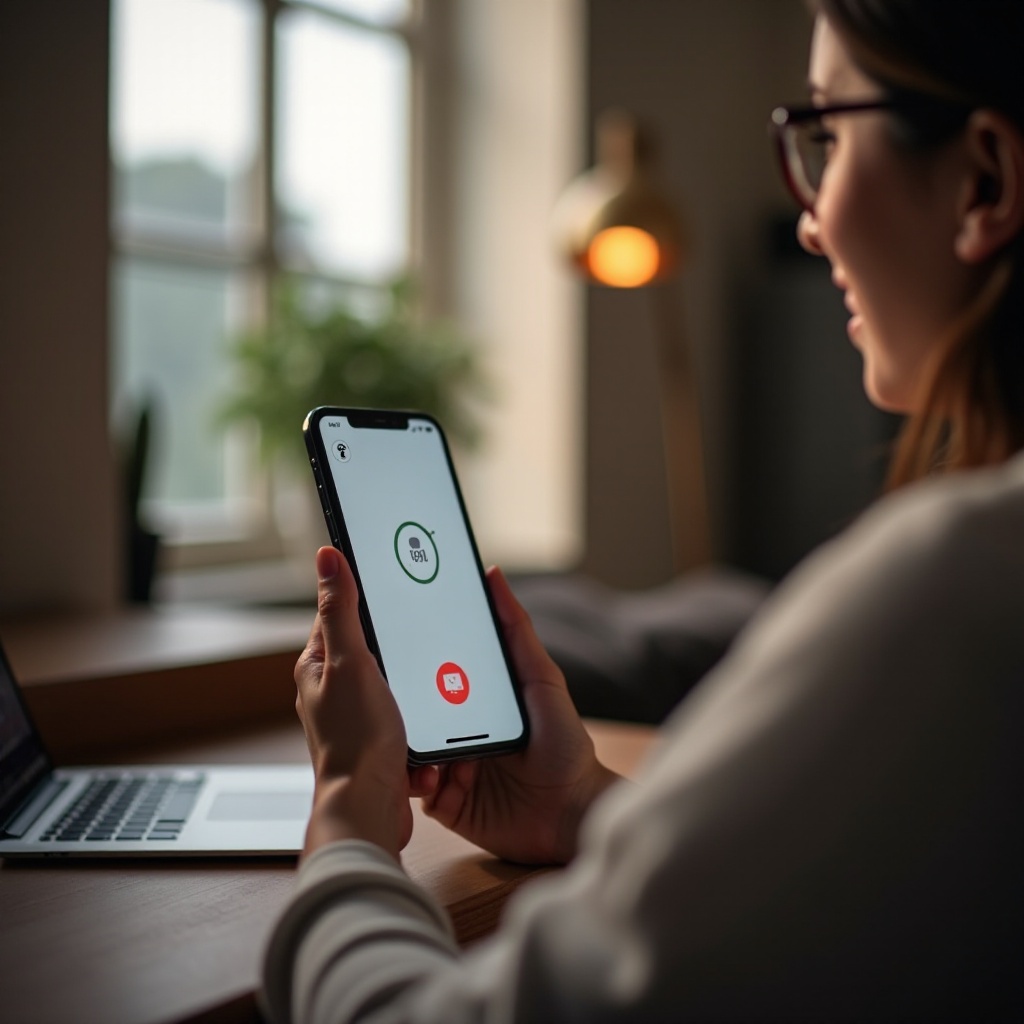
Utilizing iOS Settings for Enhanced Control
iOS offers several built-in features to simulate a pause effect during FaceTime calls, providing you with enhanced control.
- Exploring AssistiveTouch for Quick Access:
- Go to Settings > Accessibility > Touch > AssistiveTouch.
-
Enable this feature for quick access to volume controls and mute options during a call.
-
Integrating Shortcuts to Mimic Pause Actions:
- Use the Siri Shortcuts app to create custom shortcuts that automate call management actions, such as instantly muting or minimizing FaceTime.
These enhancements allow you to manage lengthy FaceTime conversations more effectively, controlling interruptions.
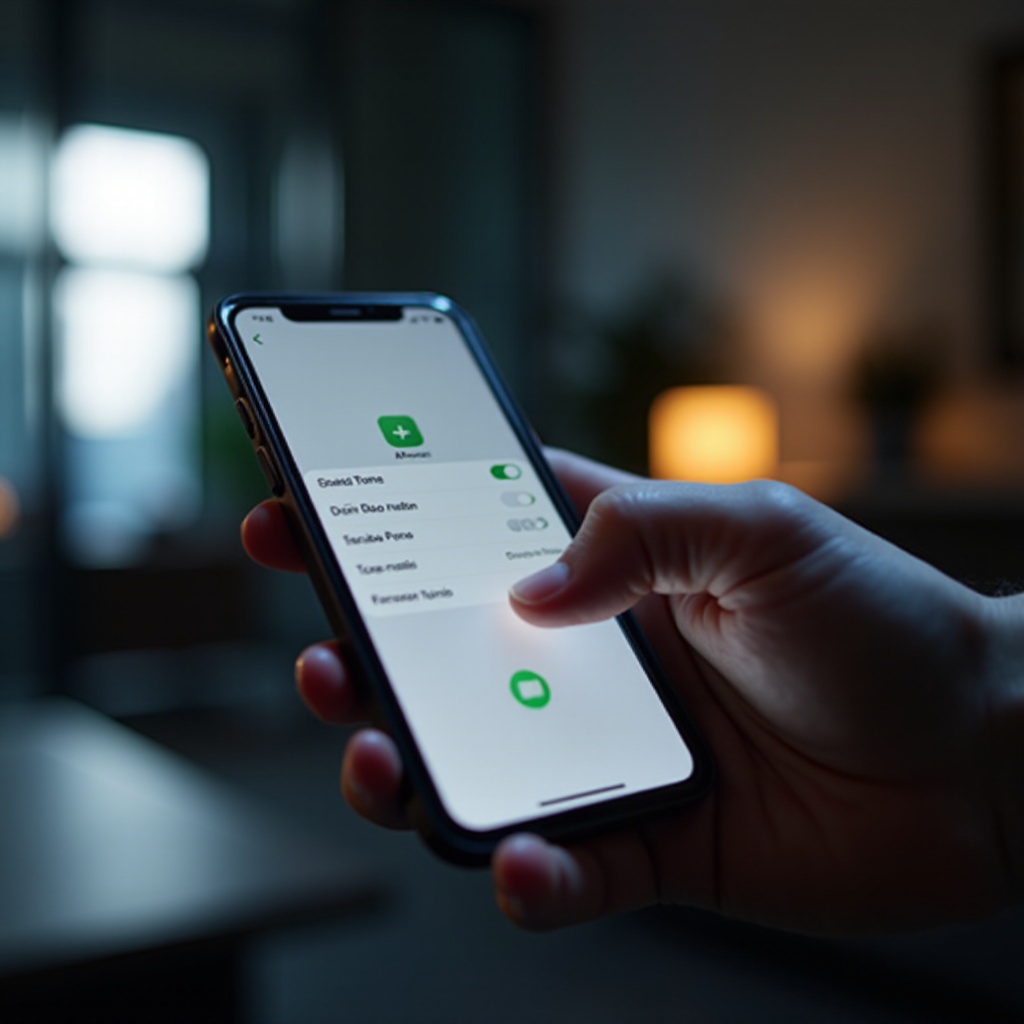
Real-Life Scenarios and User Experiences
Practical applications show the value of these workarounds, reflecting how users incorporate them into daily routines.
- Common Situations Requiring Pause:
-
Users need to pause FaceTime during unexpected interruptions, like answering the door or responding to urgent texts.
-
Testimonials from iPhone Users:
- Many users have reported positive experiences using mute and home screen features to discreetly manage calls. Testimonials reveal increased comfort and control during conversations.
These accounts demonstrate the practical utility of these methods, illustrating their value in everyday usage.
Conclusion
Effectively managing FaceTime calls is crucial for maintaining privacy and productivity in daily communication. While FaceTime doesn’t offer an official pause feature, the intuitive workarounds and settings options discussed provide viable solutions. Implementing these strategies can enhance your video calling experience on iPhone.
Frequently Asked Questions
Can I officially pause FaceTime on iPhone using a default feature?
No, there isn’t a built-in feature to pause FaceTime, but workarounds can simulate the effect.
What happens if I go to the Home Screen during a FaceTime call?
Leaving the FaceTime app reduces video visibility, mimicking a pause, while keeping the call active.
Are there third-party apps that can help pause FaceTime calls?
While third-party apps exist, they often require specific permissions and may not fully replicate a pause function.