
Introduction
AirPods have become an icon in wireless audio technology due to their sleek design and impressive features. A major strength is the touch control system, allowing seamless management of settings via taps and gestures. Whether you’re looking to adjust playback or summon a voice assistant, mastering touch controls is essential. This guide walks you through the process of customizing these settings, ensuring a tailored listening experience.
Understanding AirPods Touch Controls
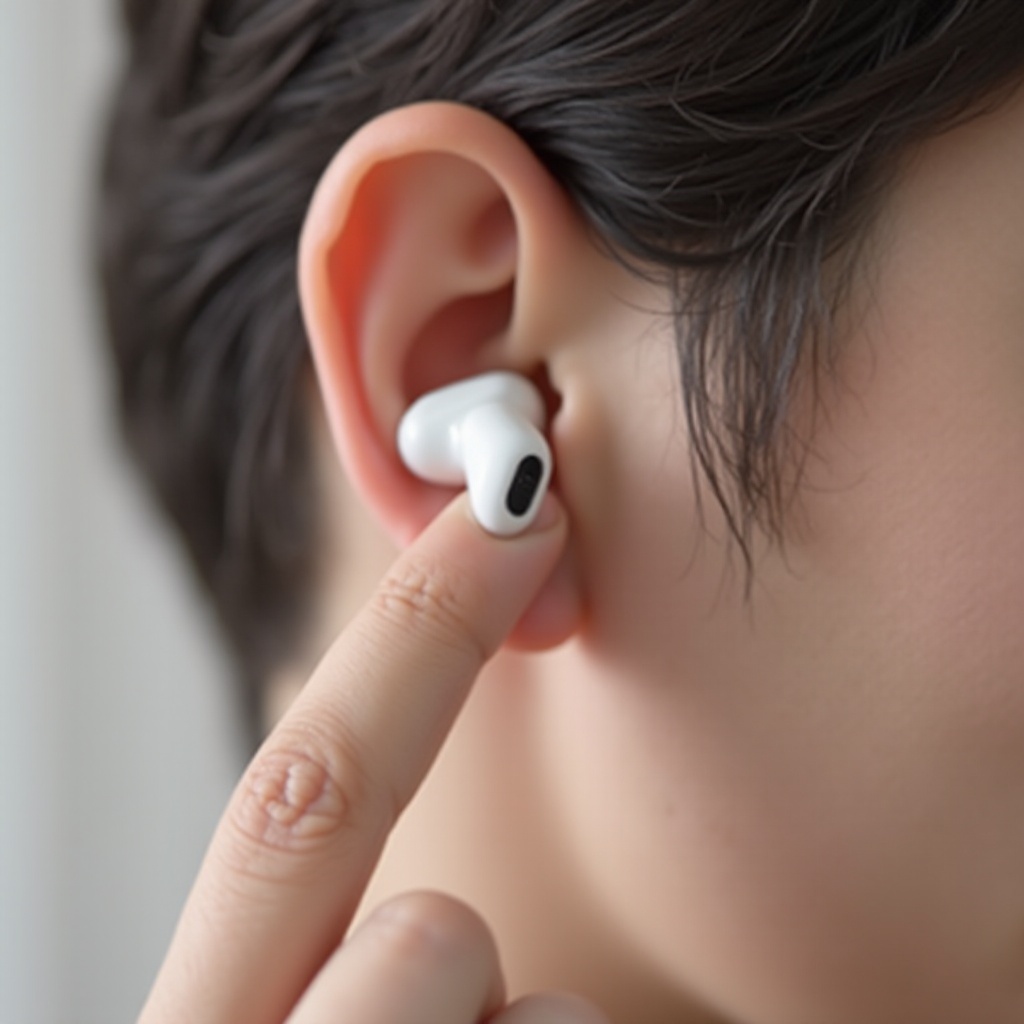
To maximize your AirPods, getting acquainted with the touch control system is crucial. Essentially, touch controls enable various functions, including play, pause, and voice assistant activation, directly from the earbud.
-
What Are Touch Controls?
Touch controls provide a hands-free, intuitive way to interact with your AirPods and manage music and calls via simple touches, avoiding constant access to your device. -
Default Settings on Different AirPods Models
Each AirPods model comes with default touch controls. For instance, on AirPods Pro, a double tap might change tracks, and a long press can switch between noise control modes. Understanding these presets will help tailor your device to your needs.

How to Change AirPods Touch Settings on iOS Devices
For iPhone and iPad users, customizing AirPods settings is straightforward due to the deep integration with Apple devices.
- Accessing Settings Menu
- Open the Settings app on your iOS device.
- Navigate to Bluetooth and select your AirPods.
-
Tap the ‘i’ icon to access AirPods settings.
-
Customizing Touch Gestures
Once in settings, modify gestures as follows: - Choose which AirPod to customize.
- Assign actions such as Play/Pause or enabling Siri to specific gestures.
These adjustments ensure your AirPods operate according to your personal preferences, enhancing usability.
Adjusting AirPods Touch Settings on Android Devices
While designed for Apple devices, AirPods can also be customized for Android via specific applications, allowing broader functional use.
- Third-Party Apps for Customization
- Install apps like AirBattery from the Google Play Store.
- Pair your AirPods with the Android device’s Bluetooth.
-
Follow app instructions to adjust gesture controls.
-
Syncing with Bluetooth Settings
Though comprehensive control is limited, you can still effectively pair and manage basic AirPods functions through Android Bluetooth settings.
This makes AirPods a versatile choice for users across platforms, giving Android users access to nearly identical features as their iOS counterparts.
Customizing Touch Controls for Different Functions
Tailoring touch controls to specific actions can radically improve your AirPods user experience.
- Setting Play/Pause and Skip
For streamlined playback management: - Assign play/pause with a double-tap.
-
Use a triple-tap to skip tracks or go back.
-
Integrating Siri with Touch Controls
Facilitating Siri usage with touch controls connects you quickly to assistance: - Activate Siri by customizing a touch command.
- Adjust Siri settings for more responsive interactions.
Utilizing these features, you can perform tasks hands-free, enhancing both leisure and productivity while using your AirPods.
Troubleshooting Common Touch Control Issues
Like any technology, touch controls may occasionally require troubleshooting to maintain efficiency.
- Addressing Unresponsive Touch Commands
- Ensure your AirPods are correctly charged and paired.
- Thoroughly clean the earbuds’ touch surfaces.
-
Re-pair the AirPods with your device if issues persist.
-
Resetting AirPods Settings
- Put AirPods in their charging case and close it momentarily.
- Press and hold the case button until the light flashes amber.
- Reconnect to restore default settings.
Addressing these challenges promptly keeps your AirPods functioning smoothly.
Maximizing Your AirPods Experience
Going beyond basic settings, continually optimizing your AirPods offers sustainable performance benefits.
- Tips for Effective Use
- Regularly update AirPods firmware for new features and improvements.
-
Test different ear tips for the best fit and noise isolation.
-
Using Accessories to Enhance Touch Control
Invest in accessories like silicone cases and clips for better access and protection of your AirPods.
These practices extend the life and effectiveness of your devices, providing a superior listening experience.
Conclusion
Understanding how to switch AirPods settings by touching them can significantly enhance your audio interaction. By appropriately customizing gestures for both iOS and Android devices, troubleshooting common issues, and employing additional accessories, you’re fully equipped to make the most of your AirPods. Personalized controls and seamless integration make AirPods an indispensable tool in everyday life.
Frequently Asked Questions
Can I customize AirPods touch settings on non-Apple devices?
Yes, by using Bluetooth and third-party apps, you can tailor basic touch controls even on Android devices.
What can I do if my AirPods touch controls stop working?
Ensure they are charged, correctly paired, and clean. Attempt to reset and re-pair them if problems continue.
How do I reset AirPods to their default touch settings?
Reset by placing them in the case, holding the button until an amber light flashes, then reconnect them.