
When your iPhone connects to your car’s audio system, do podcasts start playing automatically, interrupting your preferred audio setup? This issue is common among iPhone users whose devices connect in vehicles via Bluetooth or CarPlay. Fortunately, by adjusting settings on your iPhone and car, utilizing apps, and troubleshooting issues, you can prevent this annoyance.
Understanding the Auto-Play Feature
To effectively stop your podcasts from automatically playing, understanding the underlying cause is crucial. Typically, the auto-play feature results from your iPhone’s connection through Bluetooth or CarPlay, resuming the last played media.
How Auto-Play Works
Upon connecting with your car, your iPhone may automatically resume media playback due to default settings inherent in iOS. Both Bluetooth and CarPlay protocols are designed to support audio replay, often leading to unexpected starts.
Common Causes of Auto-Play in Cars
- Bluetooth Settings: Automatic playback often stems from specific settings within Bluetooth connections.
- CarPlay Settings: CarPlay may include preferences that resume playback without manual control.
Armed with this understanding, let’s move on to practical adjustments you can implement on your iPhone.
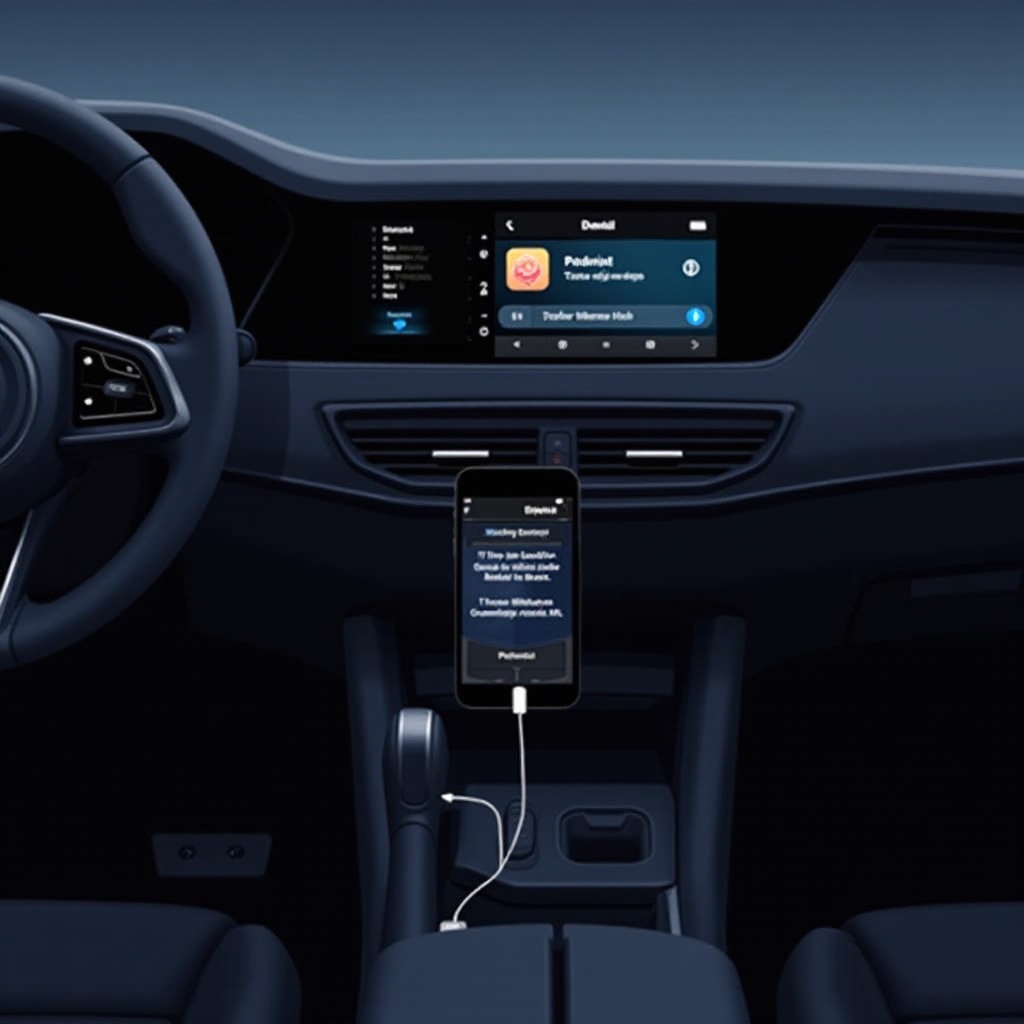
Adjusting iPhone Settings to Prevent Auto-Play
The first avenue to explore when addressing unwanted auto-play involves modifying settings directly on your iPhone.
Modifying Bluetooth Settings
- Go to Settings and Tap Bluetooth: Locate your car among paired devices.
- Disconnect Unnecessary Devices: Remove obsolete car connections to minimize auto-play triggers.
- Adjust Auto-Play Preferences: Some vehicles let you adjust playback directly from your phone’s settings.
Configuring CarPlay Options
- Open Settings and Tap General: Navigate to CarPlay.
- Choose Your Car: Select your vehicle from connected devices.
- Disable CarPlay if Necessary: If adjustments are ineffective, consider turning off CarPlay while driving.
These iPhone adjustments can significantly reduce unwanted auto-playing. Nevertheless, optimizing your car’s audio system might also be necessary.
Altering Car Audio System Settings
Beyond iPhone settings, adjustments can often be made directly within your car’s infotainment system.
Accessing Infotainment System Controls
- Navigate to Settings or Setup: This is usually accessible via the infotainment screen.
- Locate Bluetooth or Audio Settings: These may present separately or combined, depending on the vehicle.
- Adjust Auto-Play Settings: Some systems allow disabling automatic playback when connected.
Specific Settings for Popular Car Brands
- Toyota/Lexus: Check audio settings for Auto-Resume options.
- Ford/Lincoln: Explore Sync Media controls for auto-play management.
- GM (Chevrolet, GMC, etc.): Often found under Media Playback settings.
Adjustments here can provide a significant improvement, but for added control, third-party applications might be beneficial.
Utilizing Third-Party Apps for Playback Control
Third-party applications can provide additional functionalities that exceed the default options available in your phone or car settings.
Recommended Apps to Manage Auto-Play
- Do Not Disturb While Driving Apps: Can limit media interactions while driving.
- Automation Apps: Use apps like Shortcuts to create custom media control commands.
Steps for App Setup and Integration
- Download Your Chosen App: Ensure suitability for your needs through reviews.
- Configure App Settings: Set as per guideline for the desired effect.
- Test Functionality: Validate app success in your car to ensure correct behavior.
If these efforts don’t yield success, general troubleshooting may be necessary to tackle more persistent issues.
Troubleshooting Persistent Issues
Sometimes, users may encounter difficulty solving auto-play issues, which may be due to specific configurations or compatibility challenges.
Dealing with System Compatibility Problems
- Check for iOS and Firmware Updates: Ensure the latest software is running on both your iPhone and car system.
- Explore Vehicle-Specific Forums: Engage with online communities for shared solutions.
Contacting Apple Support and Car Manufacturers
- Consult with Apple Support: They can provide tailored advice, especially for persistent cases.
- Reach Out to Car Dealers: Some solutions may require manufacturer-specific help or firmware updates.
Conclusion
Stopping podcasts from auto-playing when connecting your iPhone to your car involves a combination of setting adjustments, system updates, and potentially third-party apps. By following the outlined steps, you can enjoy a more controlled and enjoyable in-car audio experience.
Frequently Asked Questions
Why does my iPhone automatically play media when connected to my car?
Auto-play typically initiates due to default settings in your iPhone or the car’s Bluetooth/CarPlay system.
How can I stop apps from automatically playing audio through my car’s Bluetooth?
Adjust Bluetooth settings on your iPhone, consult your car’s manual for disabling auto-play, or use third-party apps to manage playback.
What should I do if my car doesn’t support CarPlay?
Use Bluetooth settings for media control, consider third-party app solutions, or explore aftermarket radios with CarPlay compatibility.