
Introduction
Printing notes from your iPhone can simplify tasks, help organize your thoughts, and make sharing information straightforward. Whether it’s for keeping a backup or sharing vital details, knowing the right steps to print your iPhone notes is essential. In this guide, we detail several methods, ensuring you find the one that fits your needs best.

The Basics of Printing iPhone Notes
Understanding why and how to print notes is the first step towards effectively managing your digital information. Many prefer printing notes to have a tangible record or to share with someone who finds printed material more accessible. With iOS, you are equipped with various tools to print directly or via indirect methods.
- Why Print iPhone Notes?
Printing your notes provides a physical backup and can be invaluable during meetings or for archiving purposes. It’s also useful for those who frequently collaborate with others who prefer physical documents over digital ones.
- Understanding iOS Printing Capabilities
Apple devices offer built-in printing capabilities such as AirPrint. These features support various printing options, eliminating the need for third-party software in many cases.
Using AirPrint for Wireless Printing
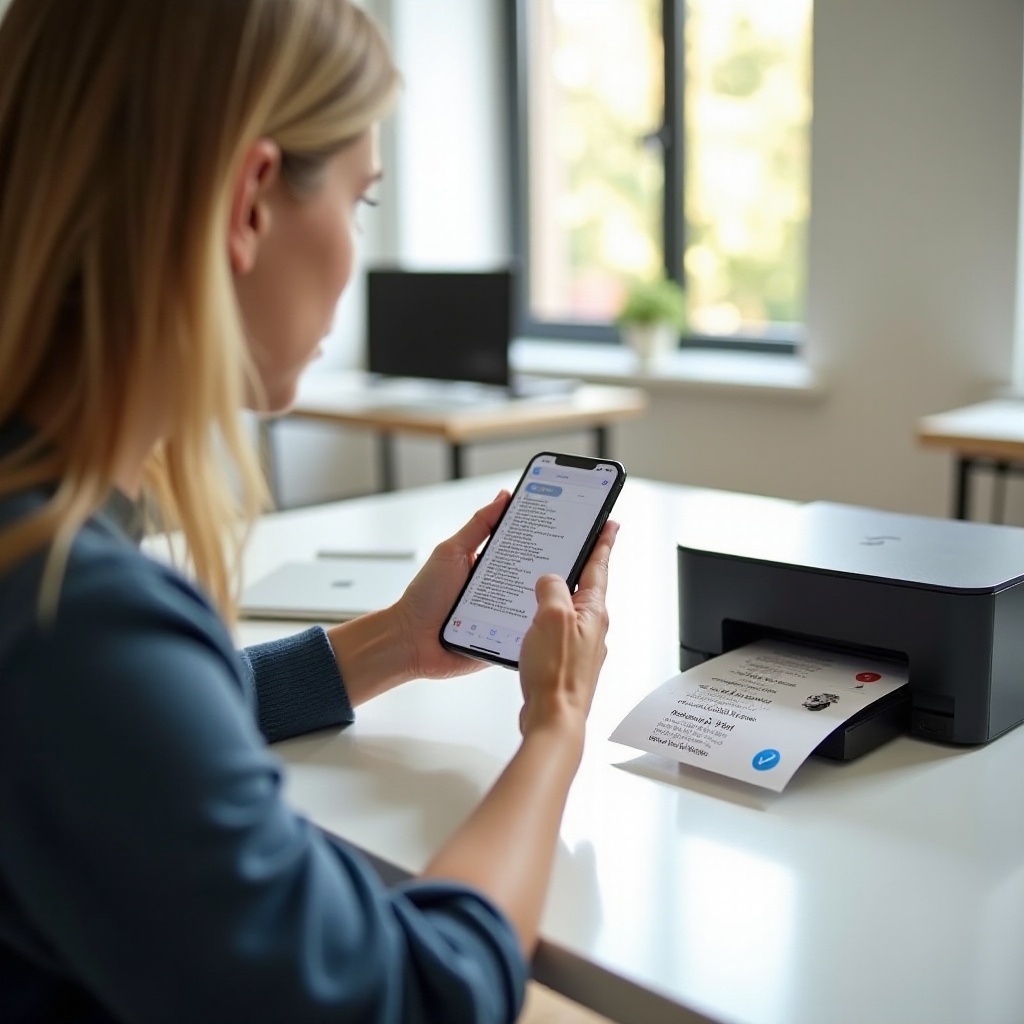
AirPrint is Apple’s wireless printing technology that enables you to print documents from your iPhone with ease. It’s a convenient option for those who have an AirPrint-compatible printer.
-
Setting Up AirPrint on Your iPhone
-
Ensure both your iPhone and printer are on the same Wi-Fi network.
- Open the Notes app and select the note you wish to print.
- Tap the share icon and choose ‘Print.
-
Select your AirPrint printer.
-
Step-by-Step Guide to Printing with AirPrint
-
When you’re ready to print, open the desired note in the Notes app.
- Select the share icon, then tap ‘Print.
- Choose your AirPrint printer from the list of available devices.
- Adjust settings like number of copies or range of pages before finalizing your ‘Print.
Using AirPrint can seamlessly transition you to our next method if your printer lacks wireless capabilities.
Printing via Email: A Simple Approach
Sometimes it’s practical to send notes via email for printing. This method works well if you have access to a computer with a printer, bypassing the need for wireless printers.
-
How to Email iPhone Notes to Yourself
-
Open the note in your Notes app.
- Tap the share button and choose ‘Mail.
-
Enter your email address and send the note to yourself.
-
Printing Notes from Your Email
-
Access your email on a computer where a printer is connected.
- Open the email with the attached note.
- Use the email client’s print option to print the note.
This approach is particularly useful for those who prefer using their desktop for managing printing tasks.
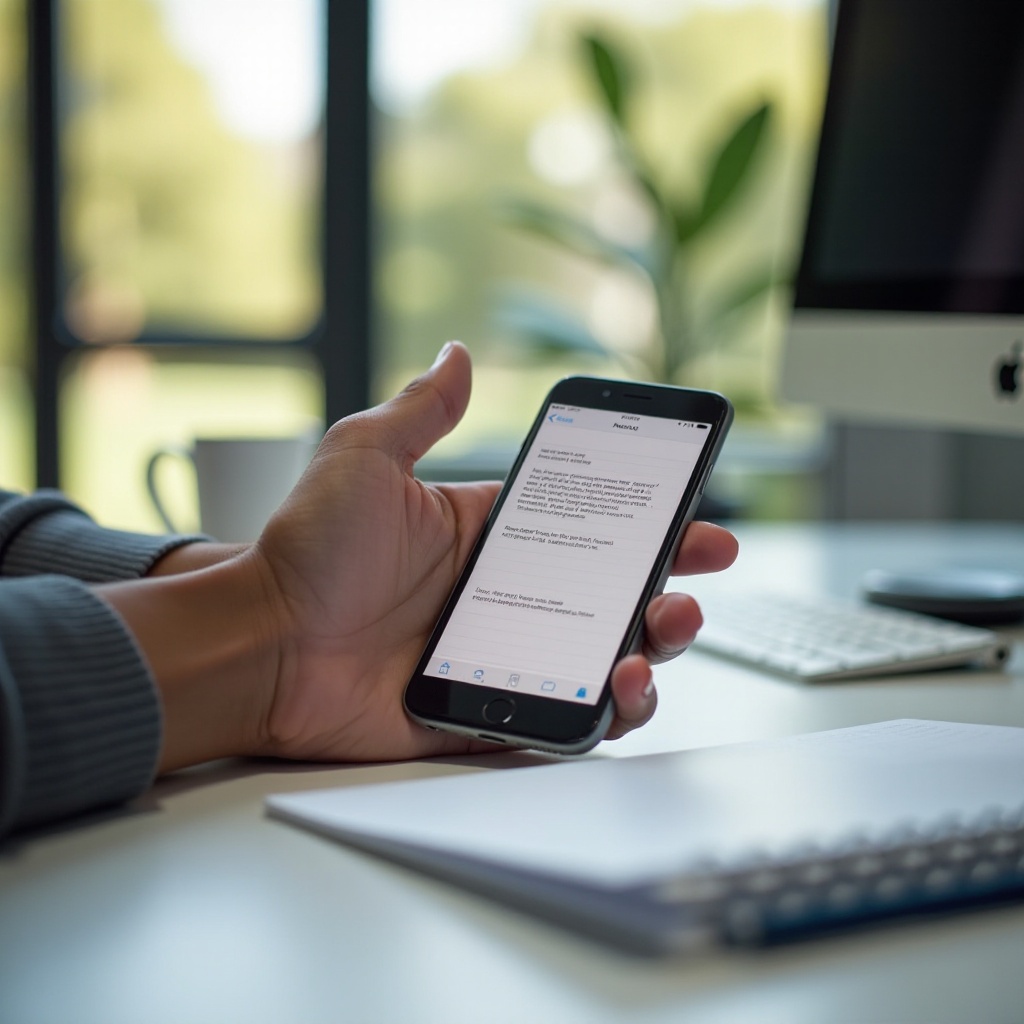
Using Third-Party Apps for Printing
For users seeking alternative methods, third-party apps offer versatility and additional functionality.
- Overview of Recommended Third-Party Apps
Apps like Printer Pro and PrintCentral provide comprehensive solutions for printing directly from your iPhone, allowing you to set up various printer models easily.
-
How to Use Printer Pro and Similar Apps
-
Download Printer Pro from the App Store.
- Follow the app’s setup instructions to connect with your printer.
- In the Notes app, choose ‘Share’ and select ‘Open in,’ then tap Printer Pro for printing.
These apps are helpful when you encounter limitations with default iOS printing options.
Printing from a Mac or PC
When you prefer working with a larger screen, using your Mac or PC to print iPhone notes is an effective strategy, especially if you frequently sync your iPhone notes with iCloud.
-
Syncing Notes with iCloud for Mac or PC
-
Ensure your notes are enabled for iCloud sync on your iPhone via Settings.
-
Access your synced notes through iCloud.com or the Notes app on your Mac.
-
Printing Directly from Your Computer
-
Open the note on your computer.
- Use the print function to set your desired print settings and initiate printing.
This desktop approach provides a reliable solution when mobile printing options are limited.
Tips for Optimizing Your Notes for Printing
Proper formatting and organization ensure your notes print clearly and are easy to read.
-
Organizing and Formatting Your Notes
-
Use bullet points or numbered lists to improve clarity.
-
Consider breaking down complex information into smaller sections.
-
Best Practices for Maintaining Print Quality
-
Verify printer settings to maintain quality, especially for notes containing images.
- Ensure regular printer maintenance to avoid common printing issues, such as paper jams or low ink.
Conclusion
Printing iPhone notes doesn’t have to be complicated. By using AirPrint, email, third-party apps, or syncing with a computer, you can choose a method that best fits your environment. These techniques ensure you’re not limited by digital constraints, giving you the flexibility to handle tasks seamlessly, whether at home or work.
Frequently Asked Questions
How do I troubleshoot AirPrint connectivity issues?
Ensure both devices are on the same Wi-Fi network, and the printer’s firmware is updated.
Can I print notes without a wireless printer?
Yes, you can email notes to yourself and print them via a wired printer using a computer.
What are the best third-party apps for printing notes?
Printer Pro, PrintCentral, and others offer robust solutions for iPhone printing.