
Introduction
Sound issues on a Samsung TV can be annoying and impede your enjoyment of your favorite entertainment. Whether it’s silent audio, minimal output, or no sound at all, these challenges can disrupt your viewing journey. Fortunately, you can often resolve these sound issues by following certain troubleshooting steps. This comprehensive guide provides all the information you need to identify and solve sound problems on your Samsung TV.
Preliminary Checks
Before venturing into intricate solutions, it’s crucial to start with fundamental checks. Many sound issues are resolved by reviewing these basic setups:
- Ensure the TV Is Not on Mute: Use your remote to verify that your TV isn’t accidentally muted.
- Verify the Volume Settings: Increase the volume using the remote and confirm the on-screen display shows a suitable volume level.
- Check Input Sources and Connections: Ensure your TV is on the proper input source, and all cables are securely tethered, particularly with external devices like a cable box or gaming console.
Completion of these initial checks is essential. If the sound problem remains, delve into the in-depth exploration of your TV’s settings.
Explore Audio Settings
Fine-tuning the audio settings of your Samsung TV can often rectify sound issues. Follow these steps:
- Navigate to the Sound Settings Menu: Access the settings via your remote, and proceed to the ‘Sound’ section.
- Customize Equalizer and Sound Effects: Within the sound menu, manipulate the equalizer and sound effects settings to explore optimal audio output.
- Reset Audio Settings to Default: Occasionally, custom audio settings may lead to trouble. Opt to reset sound settings back to their default setup to check if this action rectifies the sound issue.
If setting adjustments fail to resolve the sound problem, consider examining the hardware connections.
Inspect Hardware and Connections
Examining hardware-related factors is paramount as it can unveil causes for sound disruptions. Ensure all connections are set up correctly:
- Evaluate HDMI and Optical Cable Connections: Check for any loose or damaged cables. Re-seat HDMI and optical cables or employ alternative cables to determine cable integrity.
- Test with Different Input Sources: Experiment with different input sources. If sound issues are present across multiple sources, the root of the problem may lie internally within the TV.
Ensuring all hardware connections are robust is crucial before analyzing the need for software updates.
Software and Firmware Updates
Outdated software could be a significant contributor to sound problems. Keeping your TV’s software current is important:
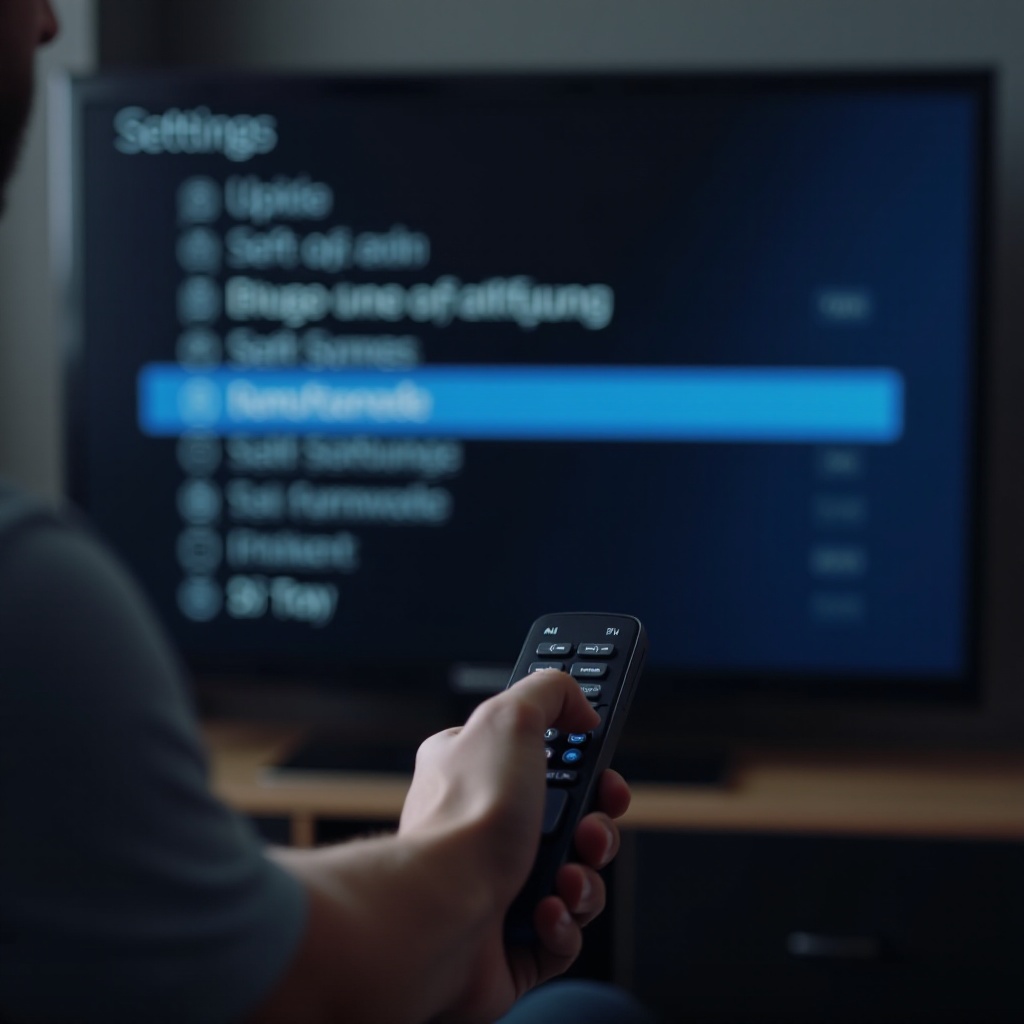
- How to Check for Software Updates: Using your remote, navigate to the ‘Support’ section in your TV’s menu. Select ‘Software Update’ to check for available updates and install them accordingly.
- Perform a Factory Reset as a Last Resort: Should all attempts prove futile, consider a factory reset. This will revert your TV to its original settings, ensuring you have stored necessary data beforehand.
If your TV’s sound still lacks efficiency after a software update and factory reset, employing external audio devices might offer a solution.
Utilize External Audio Devices
Improve or analyze your TV’s audio by integrating external systems:
- Connect and Test External Speakers: If available, connect external speakers or a sound system to your TV. This action isolates issues concerning the built-in speakers.
- Configure Soundbars and Home Theater Systems: Make sure your soundbar or home theater system settings are optimized. Adjust device-specific settings for peak audio performance.
If external adjustments and internal troubleshooting fail to resolve the issues, seeking professional assistance is advisable.
Professional Assistance
When self-solutions yield no results, professional aid becomes necessary:
- Identifying When to Seek Expert Help: Issues related to internal components may require specialized diagnostics and professional repairs.
- Contacting Samsung Support: Reach out to Samsung Support for more assistance. They can offer additional troubleshooting advice or arrange for repair services when essential.
Conclusion
Effectively addressing sound issues on your Samsung TV revitalizes your viewing experience. Through diligent application of these troubleshooting measures, identifying and overcoming common sound hurdles should be manageable. For persistent problems, engaging with professional support remains a wise option, ensuring your Samsung TV performs at its best.
Frequently Asked Questions
Why is my Samsung TV’s sound not working but the picture is fine?
This might result from incorrect audio settings, a muted audio source, or faulty connections. Try adjusting audio configurations or reviewing connections.
How can I update my Samsung TV’s audio firmware?
Go to ‘Support’ in the TV settings, select ‘Software Update’ to check for and install any available firmware updates.
What should I do if my Samsung TV still has sound issues after troubleshooting?
If issues persist, contact Samsung Support or consult with a professional technician to diagnose and repair possible internal hardware issues.